By Repli Team · June 29, 2026 · Guides
Quick Answer
Connect Instagram, select a post, configure a keyword and requested DM, then test delivery. A practical Repli tutorial with troubleshooting and policy limits.
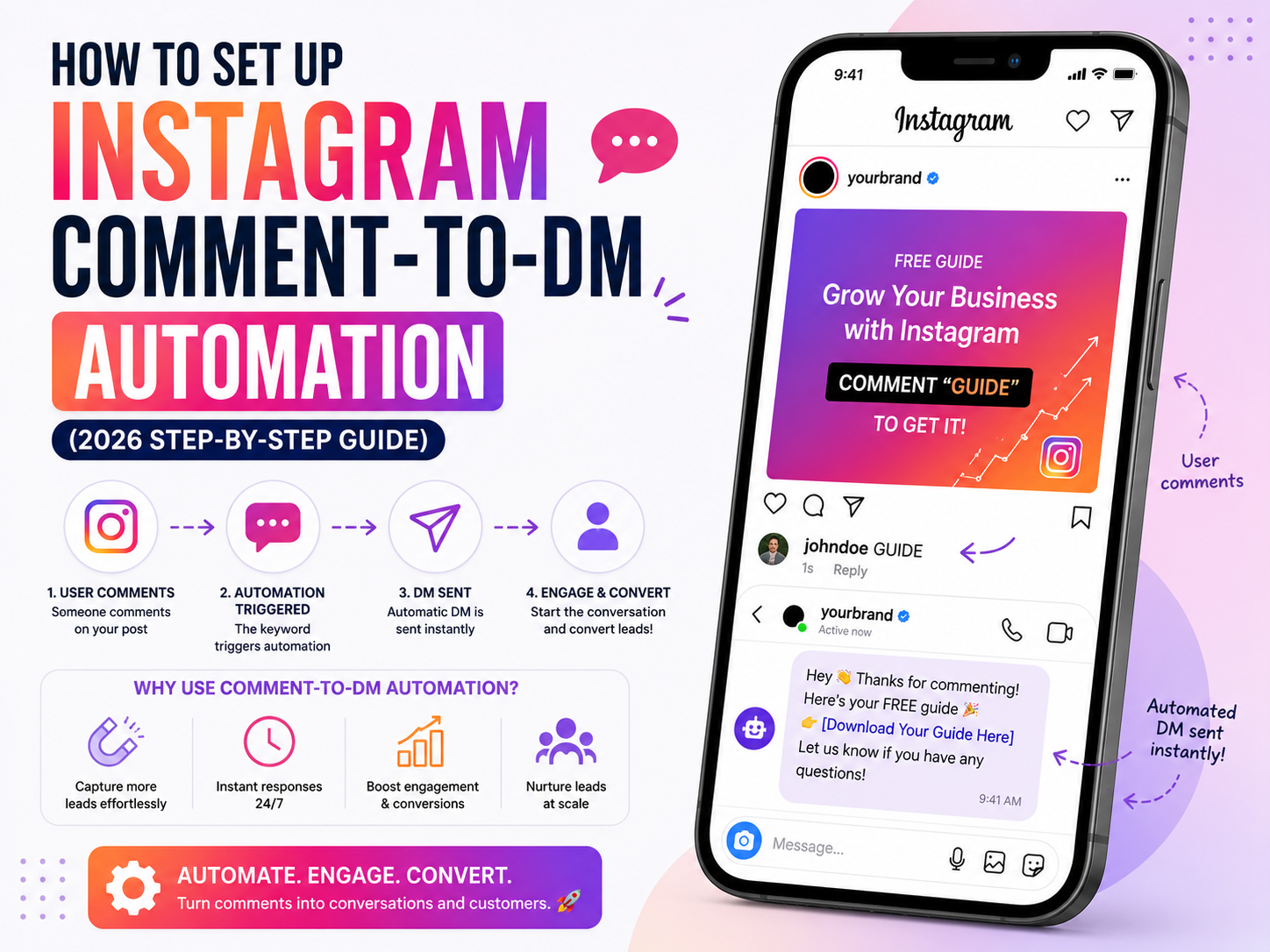
This tutorial builds one requested-link response: a person comments GUIDE on a selected post and Repli attempts the configured private reply. For product options and plan access, use the commercial comment-to-DM page; this article focuses on setup and verification.
Prepare the account and offer
Use an Instagram professional Business or Creator account and a real resource URL. Repli’s primary Instagram Login does not require you to connect a Facebook Page. Sign in, review current plan access, and avoid adding AI or lead questions until you have verified those separate entitlements.
Step 1: Authorize the correct account
Choose Connect Instagram and complete Instagram’s authorization screen. Approve the requested access for the features you need. Check the verified username when you return. A profile picture alone is not proof that comments or message delivery work.
Step 2: Select the comment rule and post
Open the automation builder, choose comment-to-DM, and select the intended post or Reel. Begin with one post rather than broad account-wide scope. Add GUIDE as the keyword and tell viewers to comment it in the caption.
A supported wildcard can match any comment, but it should not be used for unrelated posts. Review keyword scope before broadening the rule.
Step 3: Draft the private reply
Thanks for requesting the guide. Here is the link from this post: [real guide URL]. Reply here if you have a question.
Replace the placeholder manually. Add only message elements offered by your editor and permitted by the selected plan. The draft generator can help prepare copy; it does not transfer or enable an automation.
Step 4: Add an optional public response
A neutral example is “Please check your message requests for the guide.” Avoid saying a send succeeded before reading its result. Public replies are separate API operations and cannot guarantee private delivery, reach or ranking improvements.
Step 5: Save and inspect the active state
Save the rule and verify whether it is enabled in the automation list. Leave optional follow requirements off for your first test. Do not assume every save, connection or link click completed an entire flow.
Step 6: Test from a different account
- Comment the configured keyword on the selected post from another account.
- Check both the public reply and the recipient’s inbox or message requests.
- Open the delivered link.
- Read Repli’s activity/message log for the private-send outcome.
- Disable or correct the rule if it targets the wrong post or supplies the wrong information.
Delivery timing is not guaranteed. Meta permissions, account restrictions, deleted comments and processing queues can affect the result.
Troubleshoot in order
- No match: check account, selected post, keyword and enabled state.
- Public reply only: read the private-send error; do not equate the two results.
- Revoked access: reconnect when prompted and approve message/comment access.
- Follow-up fails: check the messaging window; a comment alone does not open it.
For subscription troubleshooting, see the webhook guide. Share an event time and error with support, never an access token or password.
Frequently Asked Questions
Does connecting automatically create my campaign?
No. Configure the rule, scope, message and enabled state separately.
Can I add AI or a questionnaire?
Only with eligible access and separate configuration. First verify this simple static response.